Dashboard for Ecowitt: the complete guide
Everything the app does, how to set it up, which Ecowitt hardware it supports, how alerts behave, and what to try when something doesn't look right.
- App Store name
- Dashboard for ECOWITT Weather
- Also known as
- Weathervane
- Developer
- Leech Software, Inc. · New York, NY
- Platforms
- iPhone, iPad, Apple Watch, Mac
- Mac
- A menu‑bar app for macOS 14 or later, on the same App Store listing
- Requires
- iOS 17.0 or later; macOS 14.0 or later
- Price
- Free. No in‑app purchases, ads or subscription
- Data sources
- Ecowitt Cloud, or your gateway's local interface on Wi‑Fi
- Privacy label
- Data Not Collected
- Download
- apps.apple.com/app/id6812456607
GW2000 or a word like rain.1Overview#
Dashboard for Ecowitt is a native dashboard for Ecowitt personal weather stations on iPhone, iPad, Apple Watch and Mac. It reads your station in one of two ways: directly from your gateway on your home Wi‑Fi, or through Ecowitt Cloud from anywhere. Either way you get the same dashboard.
It shows everything your station and its add‑on sensors measure: live readings, history charts, a forecast, US radar, alerts, records and more. It only shows what your hardware actually reports, so there are no empty cards for sensors you don't own.
| Area | What you get |
|---|---|
| Live dashboard | Outdoor card with a glass thermometer and 24‑hour graph; tiles for indoor, wind, rain, pressure, solar and UV; large cards for wind, rainfall, comfort, forecast, radar, sky and every add‑on sensor |
| History | 1 hour to 30 days, plus full‑screen charts up to a year for rain |
| Alerts | Weather, sensor and device alerts, a daily summary, and a separate water‑leak alarm |
| Records | Highs, lows and totals from today to all‑time |
| Multiple stations | Any number of gateways, consoles and stations, each with its own history, records, alerts and place |
| Apple Watch | A watch app with complications that reads Ecowitt Cloud by itself |
| Mac | A menu‑bar app with a detachable window, Mini Mode, desktop widgets and round‑the‑clock alerts |
| Widgets and Siri | Home Screen, Lock Screen and StandBy widgets; Siri and Shortcuts |
| Export and share | CSV export and a shareable picture of current conditions |
The app is independently developed and is not affiliated with or endorsed by Ecowitt.
2Getting started#
The first screen offers three choices:
- Use Ecowitt Cloud: the recommended choice. Works anywhere, with any station on your Ecowitt account. See Ecowitt Cloud.
- Find devices on this Wi‑Fi network: reads your gateway directly while you're at home. See Local Wi‑Fi.
- Demo: explore the app with sample stations. See Demo mode.
Then make it yours: rename and reorder stations and sensors, choose your units, turn on the alerts you care about, and add a widget or a watch complication.
3Connecting your station#
Ecowitt Cloud
Your gateway or console must already be uploading to ecowitt.net, which you set up in Ecowitt's own app. Ecowitt Cloud needs an application key and an API key. The app can sign in to ecowitt.net and create the keys for you, or you can paste keys you already have. Keys are stored in the iOS Keychain.
- Works from anywhere, for every station on your account.
- New readings about every two and a half minutes. If ecowitt.net asks the app to slow down, it backs off automatically.
- History fills in for up to a month: the last 48 hours in full detail, then the rest of the month, including add‑on sensors.
- Weather camera (HP10) photos, refreshed every 5 minutes.
- Lets the Apple Watch read your station by itself. See Apple Watch.
- Required for the original GW1000, and for consoles that have no local interface.
Local Wi‑Fi
The app reads the gateway's own local interface over your home network, with no cloud in between. It finds gateways by scanning your Wi‑Fi network, or you can type the gateway's address. iOS asks for Local Network permission the first time.
- New readings every 60 seconds, and it works with no internet connection.
- Only works while your iPhone or iPad is on the same network as the gateway.
- The last reading appears the instant you open the app.
- On a GW3000, a newer GW2000 or an HP2560 with a microSD card, charts fill in from the card for up to a month, with both rain gauges kept. See SD‑card history.
- The original GW1000 has no local interface. The app recognises it and guides you to Ecowitt Cloud.
Which should I use?
| Ecowitt Cloud | Local Wi‑Fi | |
|---|---|---|
| Away from home | Yes | No, home network only |
| Needs internet | Yes | No |
| Needs upload to ecowitt.net | Yes | No |
| How often it updates | About every 2½ minutes | Every minute |
| History | Up to a month from Ecowitt Cloud | Up to a month from the microSD card, on models that have one |
| CSV export | Up to 12 months | Up to a year of hourly history the app has saved |
| Weather camera photos | Yes | No |
| Watch updates without iPhone | Yes | No |
| GW1000 | Yes | No |
You can switch a station between the two at any time on the Data Source screen.
4Demo mode#
Demo mode lets you try every screen without hardware. It's a full sample dashboard with two stations, each with its own weather and sensors: a garden, a pond, a basement leak sensor, air quality and more. It's a good way to see what a sensor looks like in the app before you buy one.
A green Demo mode — sample data banner runs across the top while it's on. Tap Exit on the banner to connect your own station. All App Store screenshots are taken in demo mode.
5Multiple stations#
Add as many stations as you like. The station picker separates Weather stations from Gateways without a station. Each station keeps its own history, records, firmware status, alerts and location.
- Rename, reorder or hide stations from the picker.
- Remove a station, and if you add the same one again later, its settings come back.
Gateways without a weather station
A gateway used only as a hub for add‑on sensors gets its own page: indoor temperature as the headline, indoor humidity, pressure and water‑level charts, and its sensors. Forecast, radar and moon cards are off for these gateways by default, since a hub may sit somewhere other than where you live. Turn them on in Settings, and the app asks for the gateway's location then.
6The dashboard#
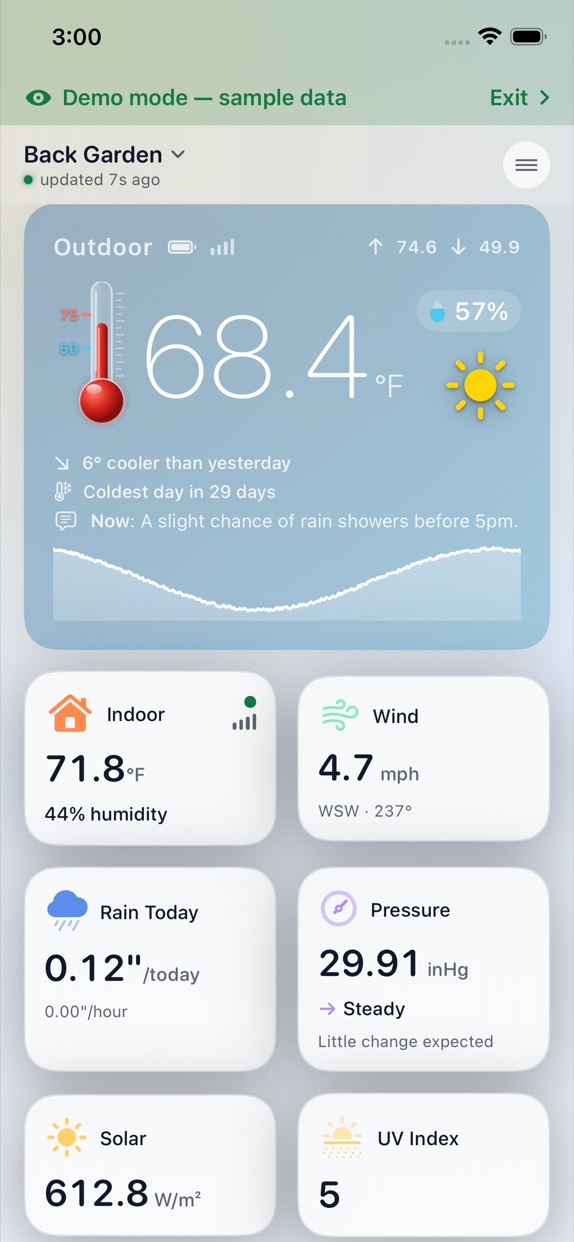
The outdoor card
- A sky that follows the weather: night with stars, rain, freezing, cold, mild, warm and hot.
- A glass thermometer beside the temperature. Its scale is fixed at 0–100 °F (−18–38 °C), so the same height always means the same temperature. Below freezing the column turns blue. Today's high (red) and low (blue) are marked at their true positions.
- Humidity, current conditions, today's high and low, and the outdoor sensor's battery.
- Compared to yesterday notes: warmer or cooler, warmest or coldest in a number of days, wettest day this month.
- In the US, the National Weather Service's forecast line, such as "Tonight: Mostly cloudy, with a low around 41."
- A 24‑hour graph with the high and low marked. Tap or press for the reading at any moment.
Small cards
Indoor, Wind, Rain Today, Pressure, Solar and UV Index, each shown only when your station reports it. Pressure shows its 3‑hour trend and a barometer outlook, such as "Clouds or rain may move in". Rain reads like 0.12" today and 0.00" hour.
Large cards
- Wind: compass dial, gust, today's maximum, direction and a 24‑hour graph.
- Rainfall: leads with the rate while it's raining, with a pulsing drop, and otherwise with today's or this week's total. Shows event, hour, day, week, month and year totals, and a PIEZO or GAUGE badge.
- Rain Gauge: a second rain card when your station has both a piezo array and a WH40.
- Comfort: feels like, dew point and how the air feels.
- Forecast, radar and sky: see Forecast, radar and sky.
- Sensors: one card per add‑on sensor, coloured by kind (soil is green, air quality purple, lightning amber), with battery, signal and a 24‑hour graph. Sensors of the same type sit together.
- Water timers, smart plugs and cameras, where you have them.
How fresh is a reading?
A reading is fresh for 90 seconds, then aging up to 5 minutes, then stale. After three failed attempts in a row the station shows as offline. A failed update never blanks the screen; you always see the last good reading. In Low Power Mode the app checks a little less often to save battery.
7Readings and sensors#
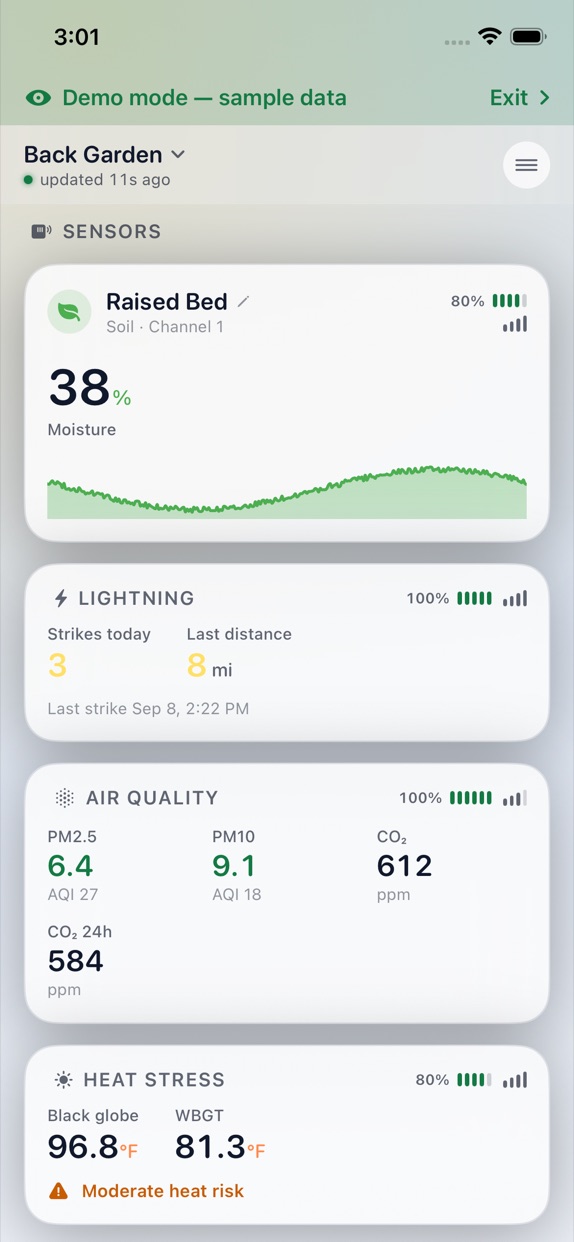
Every add‑on sensor below is read both locally and through Ecowitt Cloud. Which readings you see depends on your gateway, firmware and sensors.
| Reading | Details | Hardware |
|---|---|---|
| Outdoor weather | Temperature, humidity, feels like, dew point, wind, gusts, rain, solar, UV | WS69, WS80, WS85, WS90 arrays |
| Pressure | Current value, 3‑hour trend and outlook | Gateway or console |
| Extra temperature and humidity | Up to 8 channels | WH31 / WN31 |
| Temperature only | Extra thermometers | WN30, WN36 |
| Probe temperature | Pond, tank or soil probe | WN34 / WH34 |
| Soil | Moisture; WH52 adds conductivity (EC) and soil temperature | WH51, WH52 |
| Leaf wetness | Wetness level | WH35 / WN35 |
| Second rain gauge | Tipping bucket beside a piezo array, with its own card | WH40 / WN40 |
| PM2.5 | Up to 4 channels | WH41, WH43 |
| Air quality | PM1, PM2.5, PM4, PM10, CO₂, plus the sensor's temperature and humidity | WH45, WH46D |
| Lightning | Strikes and distance, in miles or kilometres | WH57 |
| Water leak | Up to 4 channels, with the leak alarm | WH55 |
| Distance and depth | Depth and air gap, with the sensor's mode and total height set in Devices | LDS01 |
| Heat stress | Black globe temperature and WBGT | WN38 |
| Water timers | Status and readings (view only) | WFC01, WFC02 |
| Smart plugs | Status and readings (view only) | AC1100 |
| Camera | Latest photo through Ecowitt Cloud; tap for full screen | HP10 |
Sensors sold under two names are shown with both, such as "WH40 / WN40". Every sensor shows its battery, signal and ID, and can be renamed.
Two rain gauges
If your station has both a piezo array and a WH40 tipping‑bucket gauge, both are shown, each with its own card. Choose which one is the main rain total in Settings under Main rain gauge. That choice only appears when a station has two gauges.
8Charts and history#
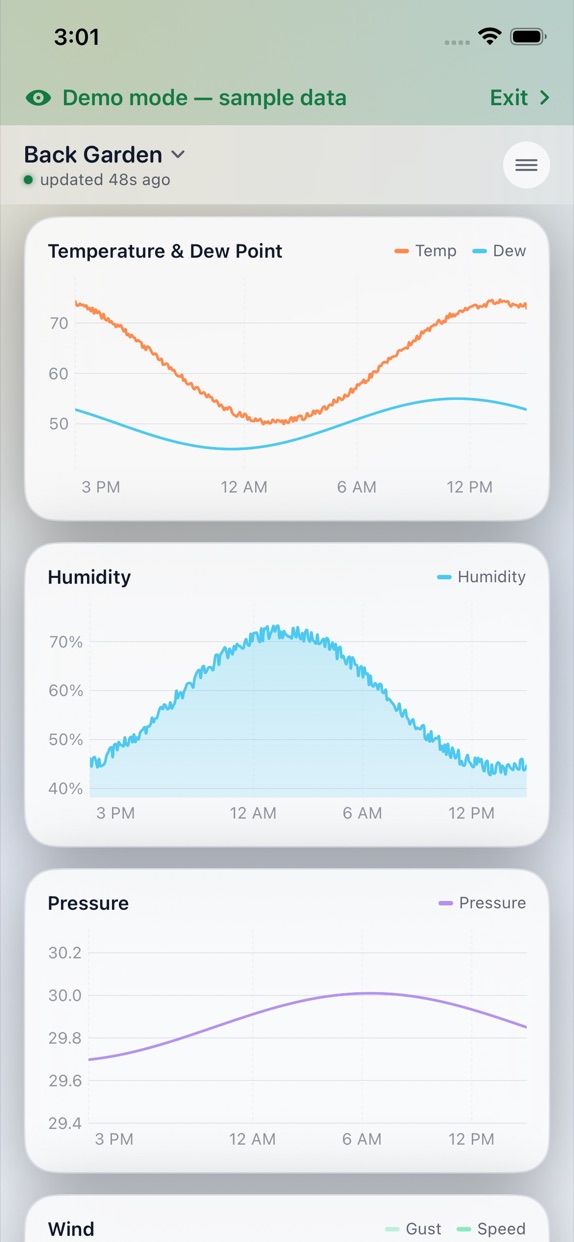
The History section has charts for temperature and dew point, humidity, pressure, wind, solar, rain and soil. Choose 1H, 6H, 24H, 48H, 7D or 30D, and tap or press anywhere on a chart to see the reading at that moment.
Where there were no readings for more than 45 minutes, the line stops and starts again rather than drawing straight across the gap.
Full‑screen charts
Tap the expand button on the Rainfall card or any sensor card for a landscape chart. Rain shows 7 days, 1 month or 1 year. Sensors show 24 hours, 48 hours, 7 days or 1 month.
SD‑card history
On a GW3000, a newer GW2000 or an HP2560 console with a microSD card, the app fills in your charts from the card, for up to a month, converted to your units. This works over the local connection, so you get history even if your station never uploads to the cloud.
Cloud history
Through Ecowitt Cloud, history fills in for up to a month, add‑on sensors included. It's merged with readings the app has already saved, never overwriting them.
What the app keeps
Each station keeps its own history on your device: full detail for the last 48 hours, 15‑minute samples for 30 days, and hourly samples for a year.
9Records, export and sharing#
- Records: highs, lows and totals from today back to all‑time, kept beyond the year of saved history, and including cloud history that arrives later.
- CSV export: up to 12 months from Ecowitt Cloud, or up to a year of hourly history the app has saved locally. Soil temperature and conductivity columns are labelled.
- Share: a 1080 × 1350 picture of current conditions, ready for Messages or social media.
10Forecast, radar and sky#
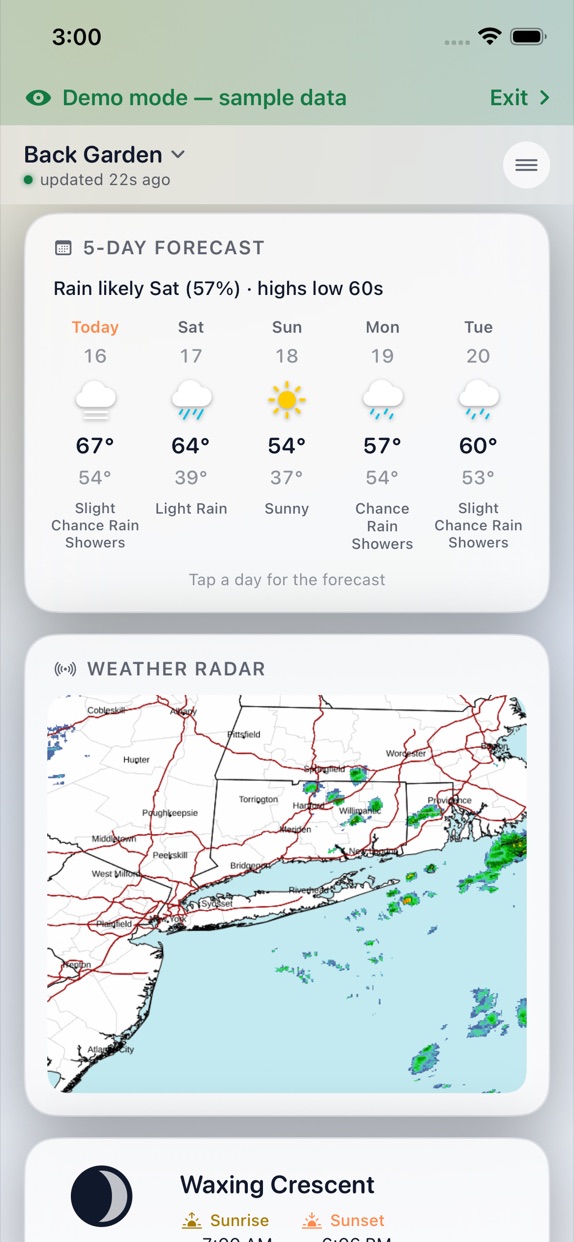
- 5‑day forecast, worldwide, with a one‑line summary such as "Rain likely Thu (47%) · highs upper 60s" and each day's chance of rain. Refreshed hourly.
- Written forecasts (US). The National Weather Service's words under each day; tap a day for the full day and night text.
- Weather radar (US). NOAA's latest radar picture for your station's area, refreshed every 20 minutes. Tap it for the full page.
- Sky card. A drawn moon with its real phase shadow, illumination, sunrise and sunset.
The forecast uses your station's location. If it has none, the app uses your device's location. You can turn the forecast, radar, moon, graphs and sensors on or off in Settings.
11Alerts#
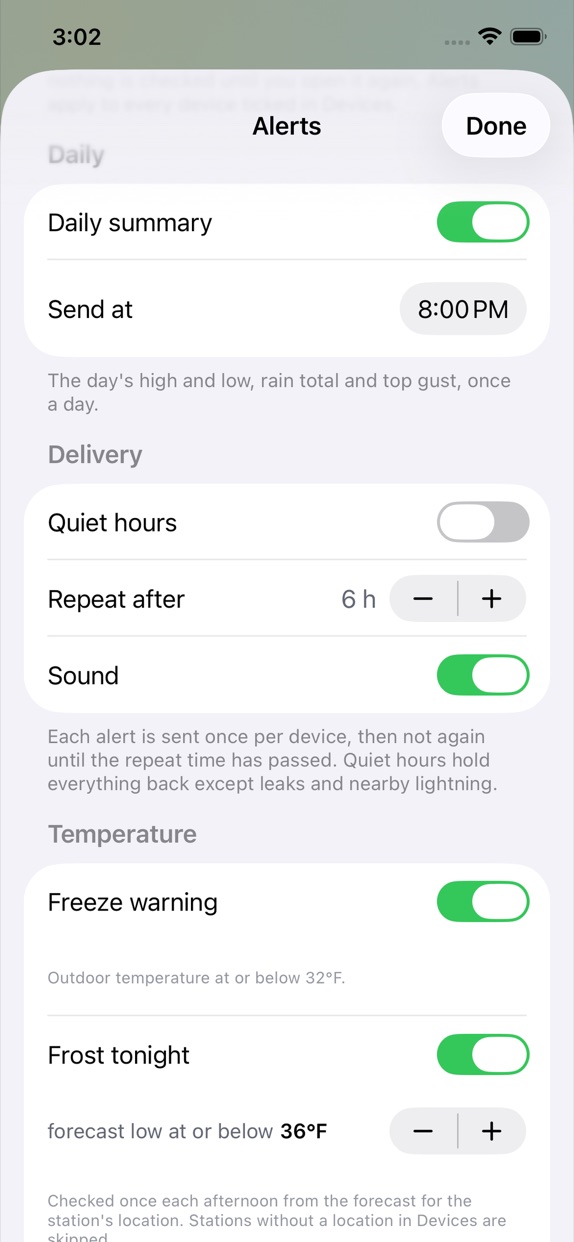
Alerts are notifications from the app itself, each with a picture of the conditions, in the units you chose. Turn on only the ones you want.
What can alert you
- Temperature: freeze warning; frost tonight (from the forecast low, checked once each afternoon); below or above a limit; falling fast; indoor too low or high.
- Rain: it just started raining; rain has stopped (dry for 20 minutes, with today's total); heavy rain; daily rain total; rain event total.
- Wind and pressure: strong wind; strong gust; pressure falling or rising fast over 3 hours.
- Lightning: lightning detected; lightning nearby.
- Air: PM2.5 high (the worst of your air‑quality sensors); CO₂ high; outdoor or indoor humidity low or high.
- Any sensor: your own low and high limits.
- Devices: a sensor stops reporting; a sensor's battery is low; a device goes offline; a firmware update is available (once a week, with Ecowitt's release notes).
- Daily summary.
When alerts are checked
- With the app open: the station on screen is checked on every reading, and every other station is checked every minute (every couple of minutes through Ecowitt Cloud), so an alert at any station arrives quickly whichever one you're looking at.
- On the Mac: the menu‑bar app watches every station around the clock while it's running. See Alerts on the Mac.
- With the app closed: the app asks iOS for a background check every 15 minutes, the shortest iOS allows. iOS decides when it actually runs, which can be anywhere from every 15 minutes to a few times a day. Each background reading is also saved to the station's history.
Rules that keep alerts trustworthy
- Each alert fires once per station, then not again until the Repeat after time has passed (6 hours by default). Rain started and stopped fire for every shower.
- Quiet hours hold everything except urgent alerts: a water leak and lightning nearby.
- "In the last hour" alerts only compare against a reading from 45 to 90 minutes ago, never an older one, so a station you haven't looked at in hours can't trigger a false "temperature dropped" alert.
- A rate limit or a short background run never counts as a device being offline.
Daily summary
Once a day per station, at a time you choose. The title reads like 61°F ↑ 71° ↓ 39°, followed by humidity, rain if any fell, wind and direction, and the forecast, such as "Forecast: Rain likely Fri (65%) · highs upper 60s".
12Water‑leak alarm#
With a WH55 leak sensor, the app guards against water damage:
- On by default, and works even with Alerts turned off. The app explains it once before asking for notification permission.
- A distinct 27‑second rising alarm sound, sent as time‑sensitive so it breaks through Focus. The title names the sensor and station.
- Repeats every 30 minutes while water is detected, and sends a Dry again all‑clear when the sensor is dry.
- A red WARNING: WATER DETECTED bar on the dashboard of every station, on the Apple Watch, and as LEAK in the Mac menu bar. It stays even if the sensor goes offline while wet. Tap OK to silence it until the sensor is dry.
- Works for stations on Ecowitt Cloud as well as local ones.
13Apple Watch#
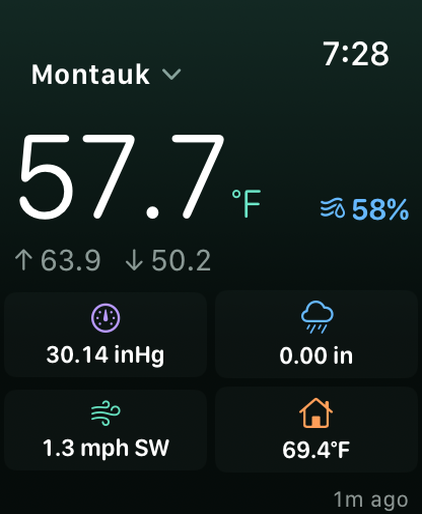
- Redesigned: a large outdoor temperature with humidity beside it, then an icon grid with pressure, rain, wind and indoor, an age stamp in the corner, and a scrollable list of sensors.
- Station picker in the top corner, hidden when you have only one station.
- Complications for every watch‑face family, including Station details for large slots, which shows six readings and a "2 min ago" stamp so you can tell when a reading is old.
- The same red leak warning as the phone.
Updating without the iPhone
For stations on Ecowitt Cloud, the iPhone securely passes the watch what it needs, and the watch then reads your station by itself about every 15 minutes. Complications stay current even when the iPhone app isn't running or the phone isn't nearby. Stations on local Wi‑Fi, and the demo, update the watch only through the iPhone.
Camera photos aren't shown on the watch or in widgets, since a camera has no readings to show.
14Widgets, Siri and Shortcuts#
- Outdoor widget in every Home Screen size, plus Lock Screen and StandBy sizes. High and low are today's since midnight.
- Sensor widget that you can set to any add‑on sensor.
- Mac desktop widgets: outdoor in small and medium, and a small sensor widget.
- Siri and Shortcuts: Current Conditions, Outdoor Temperature and Rain Today, each with an optional station, in the units you chose.
15iPad#
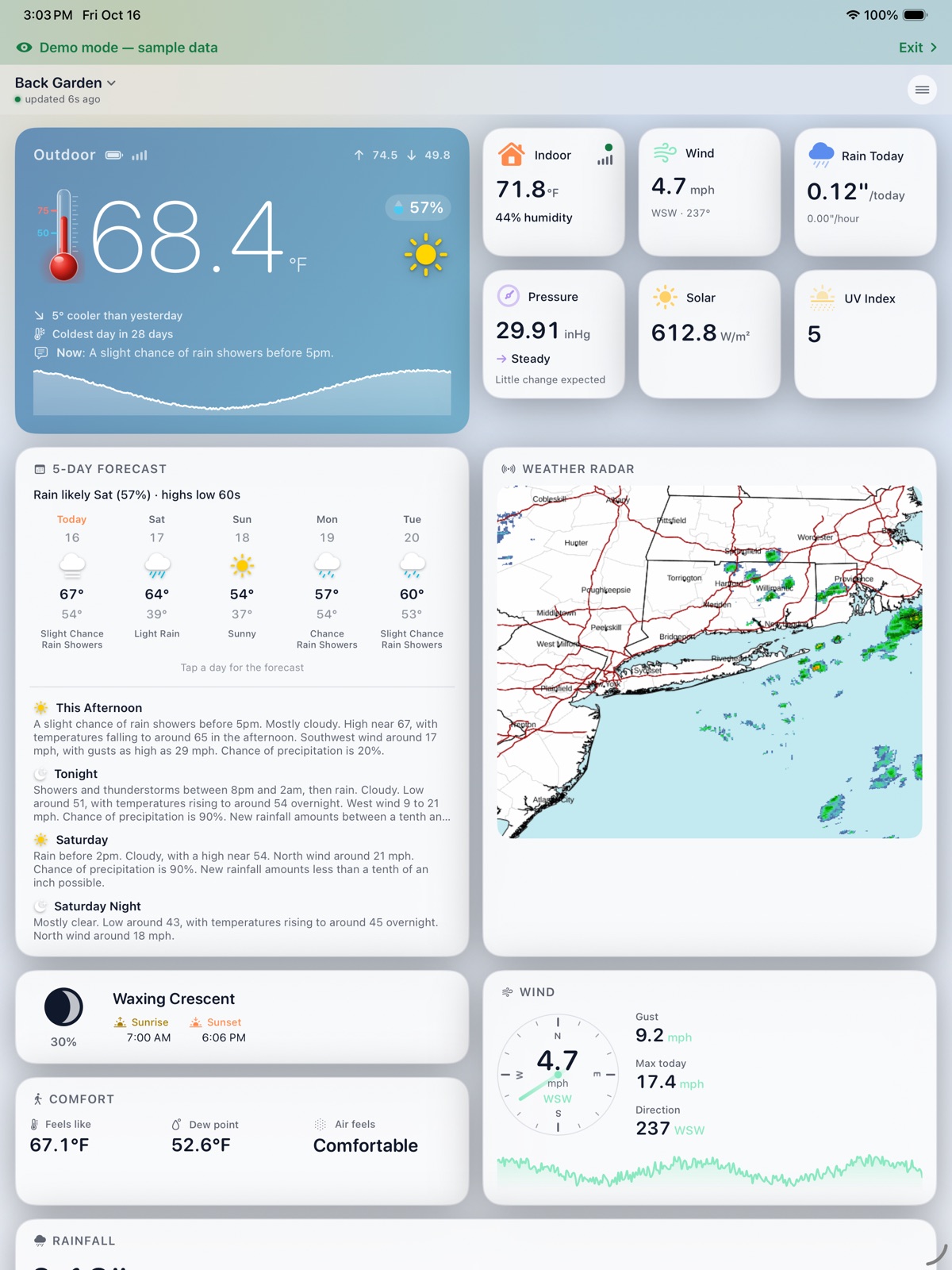
On iPad the dashboard uses two columns, with cards in side‑by‑side pairs that end level. History charts sit two across, and sensor cards two across in portrait and three across in landscape. The forecast card shows the next few NWS periods.
16Mac#
The Mac version is a menu‑bar app for macOS 14 or later. It's on the same App Store listing as the iPhone and iPad app, and is free. It shows the same stations, history, forecast, alerts and leak alarm.
Menu bar and panel
- The menu bar shows the sky icon and temperature, the temperature only, or the icon only. While water is detected it shows LEAK.
- Click it for the panel: an animated sky, the temperature with its thermometer, reading tiles with a live wind dial, a history graph you can hover to read, the 5‑day forecast with the moon and sun, radar, and your sensors with hoverable graphs.
- Drag cards to reorder them. Cards in a row match heights.
Window, desktop and Mini Mode
- Drag the panel's header out, or choose Open in Window, to get a resizable window that moves by its header.
- Window Position: normal, always on top, or on the desktop, where it sits above your icons and below every app, on all Spaces, like a clock.
- Mini Mode: sky, temperature, high and low, station and one row of readings. Each mode remembers its own size.
- Right‑click or Control‑click the menu‑bar icon for Open in Window, Keep Window in Front, Mini Mode or Standard Window, Settings and Quit.
Alerts on the Mac
The Mac app stays running in the menu bar, so every station is watched around the clock and alerts go out as soon as something happens. The first time you open it, it asks whether to open at login. Say yes if you rely on alerts, since alerts only go out while the app is running.
Desktop widgets
An outdoor widget in small and medium sizes, and a small sensor widget.
Settings
The Settings window has four tabs: Station (Ecowitt Cloud sign‑in or keys, a network scan or address, demo mode, and each station's location), Units, Alerts, and General (menu‑bar style, open at login, which cards to show, and desktop window options). Email Us includes a Run Test button that scans your network and adds the result to the report.
17Settings and units#
Settings only shows choices that apply to your stations. For example, Distance appears only if you have an LDS01, and Main rain gauge only if a station has two gauges.
| Setting | Options |
|---|---|
| Temperature | °F or °C |
| Rainfall | Inches or millimetres |
| Pressure | inHg, hPa or mmHg |
| Wind | mph, km/h, m/s or knots |
| Lightning distance | Miles or kilometres |
| Solar | W/m² or kilolux |
| Distance | Feet and inches, or centimetres and metres |
| Time | 12‑hour or 24‑hour |
| Appearance | Light or dark |
| Dashboard | Show or hide weather stations, the weekly forecast, radar, moon phase, graphs and sensors, with separate switches for gateways without a station |
| Main rain gauge | Piezo or tipping bucket, when a station has both |
| Alerts | Each alert, its limits, quiet hours, repeat time and the daily summary time |
Readings use your region's decimal mark, so you see 21,5 or 21.5.
Data Source
Switch between local network and Ecowitt Cloud, manage your cloud keys, and refresh the station list.
18Devices and firmware#
The Devices screen lists every gateway and sensor:
- Each gateway with its firmware version. Tap the version to check for an update. When one exists, a red star appears with "How to update" steps and Ecowitt's release notes.
- Its location, which you can change by searching for a place. This sets the forecast and radar.
- The outdoor array as one line under its gateway.
- Each add‑on sensor with its model, ID, battery and signal. Rename it, reset it to its default name, or drag to reorder. LDS01 sensors also have their mode and total height here.
19Supported hardware#
The app works with every Ecowitt gateway and console that uploads to Ecowitt Cloud, and directly over Wi‑Fi with those that have a local interface. Newer and regional models usually work too, as they share the same interfaces.
| Type | Models | Notes |
|---|---|---|
| Gateways | GW1100, GW1200, GW2000, GW3000 | Local or cloud. GW3000 and newer GW2000 support SD‑card history |
| 4G gateways | WittField WS6210, WS6006 | |
| Original gateway | GW1000 | Ecowitt Cloud only |
| Consoles | HP2550, HP2551, HP2560, HP2561, HP2564 Wittboy Pro, HP3500, WS2320, WS2910, WS3800, WS3820, WS3900, WS3910, WN1820, WN1821, WN1920, WN1980 | HP2560 supports SD‑card history |
| Outdoor arrays | WS69, WS80, WS85, WS90 | WS85 and WS90 use piezo rain |
| Station packages | GW1101, GW1201, GW1202, GW1210, GW2001, GW3001, GW3002, Wittboy, Essense3, WN1981, HP2552, HP2553H | Any package built on a supported gateway or console |
| Add‑on sensors | WH31/WN31, WN30, WN36, WN34/WH34, WH51, WH52, WH35/WN35, WH40/WN40, WH41, WH43, WH45, WH46D, WH57, WH55, LDS01, WN38 | Read both locally and through the cloud. See Readings and sensors |
| Other devices | WFC01 and WFC02 water timers, AC1100 smart plug, HP10 camera | Shown, not controlled. Camera through the cloud |
20Privacy#
No account to create, no analytics, no ads and no tracking. The App Store privacy label is Data Not Collected. The app only ever talks to:
- your own gateway on your network,
- Ecowitt Cloud, if you use it,
- weather.gov and Open‑Meteo, for the forecast and radar,
- the Leech Software support form, only when you send a message.
Your Ecowitt keys are stored in the iOS Keychain. Read the full privacy policy.
21Troubleshooting#
The app doesn't find my gateway on Wi‑Fi
- Make sure your iPhone or iPad is on the same Wi‑Fi network as the gateway.
- Check that Local Network access is allowed for the app in iOS Settings › Privacy & Security › Local Network.
- Turn off VPN and firewall apps while you search; they can block local connections.
- Type the gateway's IP address instead of scanning.
- Consoles and the original GW1000 have to be connected through Ecowitt Cloud. If nothing is found, the app explains this.
A sensor is missing
- Update to the latest version. It fixes sensors disappearing after recent GW2000 and GW1100 firmware updates.
- A sensor that has stopped reporting shows No signal. Check its battery and range.
- Open Devices and match the sensor ID to your hardware.
- Over Ecowitt Cloud, a sensor only appears if your gateway uploads it to ecowitt.net.
- Still missing? Use Email Us. The report includes what your gateway sends, which usually pinpoints the problem.
My local station shows as offline when I'm away
Local Wi‑Fi only works on your home network. Use Ecowitt Cloud to see your station from anywhere.
My charts have gaps
The line stops wherever there were no readings for more than 45 minutes. See Charts and history for where history comes from.
An alert came late
With the app closed, iOS decides when background checks run. See When alerts are checked.
The forecast is for the wrong place
Open Devices and change the gateway's location by searching for a place.
The watch complication isn't updating
Stand‑alone updates need Ecowitt Cloud. For a local‑only station, the watch updates through the iPhone.
Ecowitt Cloud says "Operation too frequent"
Ecowitt limits how often your keys can be used. The app slows down automatically and recovers by itself.
22Glossary#
- Gateway
- The small box (GW1100, GW2000, GW3000…) that receives your sensors' radio signals and puts them on your Wi‑Fi.
- Console
- A display unit (HP2560, WS3900…) that does a gateway's job and has its own screen.
- Outdoor array
- The main outdoor sensor (WS69, WS80, WS85, WS90) with temperature, humidity, wind, rain, solar and UV in one unit.
- Piezo gauge
- A rain sensor with no moving parts that measures drops hitting a plate.
- Tipping bucket
- A classic rain gauge, like the WH40, that counts a small bucket tipping as it fills.
- Rain event
- The rain total since the current spell of rain began.
- Dew point
- The temperature at which air becomes saturated and dew forms.
- Feels like
- How warm or cold it feels, combining temperature with humidity or wind.
- PM1, PM2.5, PM4, PM10
- Airborne particles smaller than 1, 2.5, 4 and 10 micrometres.
- EC (conductivity)
- How well soil conducts electricity, a rough measure of dissolved nutrients and salts.
- Black globe and WBGT
- Heat‑stress measures that include sunshine and radiant heat, from a WN38.
- Local interface
- The gateway's own connection on your home network that the app reads directly.
- Ecowitt Cloud
- Ecowitt's online service at ecowitt.net, which stores uploads from your station.
- Application key and API key
- The pair of keys Ecowitt Cloud uses to let an app read your stations. The app can create them for you.
23Version history#
Latest version
- Full‑screen charts for rain and every sensor.
- Choose the main rain gauge when you have both piezo and tipping bucket.
- WFC01 and WFC02 water timers, the AC1100 plug, and HP10 camera photos.
- SD‑card history on GW3000, newer GW2000 and HP2560.
- A drawn moon on the Sky card.
- Redesigned Apple Watch app and the "Station details" complication.
- WH46D PM1 and PM4.
- Sensors no longer disappear after recent GW2000 and GW1100 firmware updates.
- GW1000 recognised, with guidance to use Ecowitt Cloud.
- Firmware checks that name the new version and show the release notes, with weekly reminders.
- Sensors grouped by type; "No signal" instead of vanishing.
- Sensor history from Ecowitt Cloud; LDS01 depth fixes; chart gap and label fixes.
- Alerts checked for every station every minute; no false alerts from old history; forecast in the daily summary; background readings saved to history.
- The Mac app: menu bar, detachable window, Mini Mode, desktop widgets and card reordering.
- Thermometer on a fixed 0–100 °F scale; cards in a row match heights; three sensor cards across on iPad in landscape.
2.1
- NOAA radar and National Weather Service written forecasts (US).
- New outdoor card with a sky that follows the weather and a glass thermometer.
- Daily summary for every station; rain started and stopped alerts.
- The Apple Watch reads Ecowitt Cloud by itself.
- WN40, WH52, WN34 and WN1980 fixes, and a second rain source.
- Distance unit, region‑based defaults, knots and m/s, lightning in km, sensor colours.
2.0
- Apple Watch app and complications.
- Alerts and the water‑leak alarm.
- LDS01 support; firmware status.
- 7‑day and 30‑day history with cloud backfill; press‑to‑inspect charts; Records.
- Sensor and Lock Screen widgets; CSV export; Siri.
- Pressure trend, frost alert, share picture, "compared to yesterday", Comfort card and forecast summary.
- Two‑column iPad layout; reorder devices and sensors; removed stations remembered.
24Getting help#
The fastest way is Email Us in the app. Along with your message it sends a short device report: app and iOS version, device, language, time zone, data source, gateway and sensors. It also includes a log of what the app found while looking for your station and which fields each device sends. The log has field names only, never your readings, keys, passwords or device addresses. That's usually enough to fix a "my sensor is missing" report without back‑and‑forth.
You can also use the contact form.