Dashboard for Ecowitt for Mac: the complete guide
Dashboard for Ecowitt puts your Ecowitt weather station and sensors in the Mac menu bar. Click the icon for a full dashboard, keep a station on the desktop like a clock, or watch a single sensor in a small window of its own.
- Requires
- macOS 14 Sonoma or later
- Works with
- An Ecowitt gateway (GW1100, GW2000, GW3000, WN1980, HP25x0 consoles and others) and any sensors paired to it
- Price
- Free on the Mac App Store
- Also on
- iPhone, iPad and Apple Watch
01Overview#
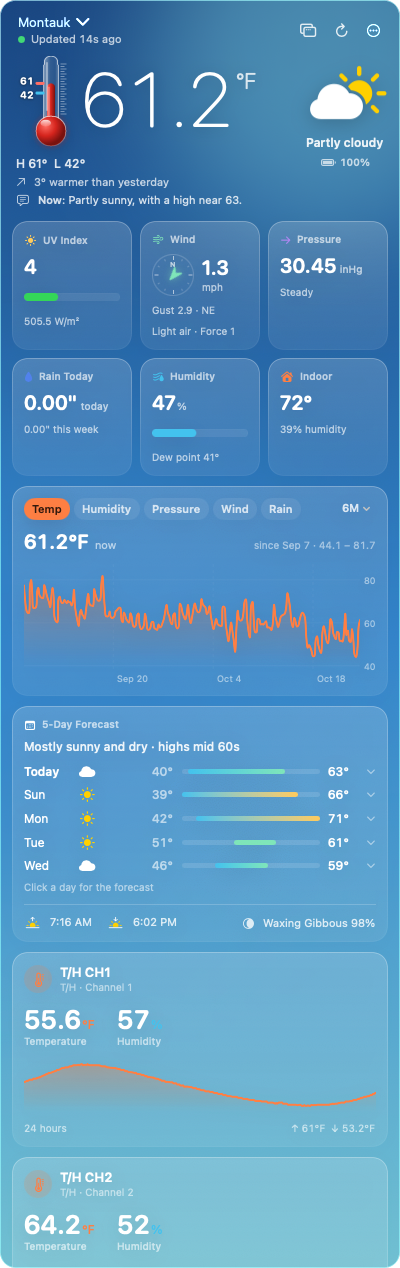
Dashboard for Ecowitt (Weathervane) lives in the menu bar. One click opens a full dashboard for your station: outdoor conditions, tiles for pressure, wind, rain, humidity, UV and indoor readings, history graphs, the forecast, and a card for every sensor.
From there you can pull the panel off into a window of its own, shrink it to mini mode, or give any single sensor a small desktop window. While the app runs, it also watches every station on your account and can sound a loud alarm if a leak sensor gets wet.
The app connects over Ecowitt Cloud or straight to a gateway on your own network, and a demo mode lets you look around before connecting anything.
02Getting started#
When the app first opens, the menu bar panel asks how you'd like to connect.
Connect with Ecowitt Cloud (recommended)
Works from anywhere with internet, wherever your station is.
- Choose Ecowitt Cloud and sign in with your Ecowitt account.
- The app creates and fills in your API keys for you.
- Every station on your account appears in the station picker.
If you'd rather enter the keys yourself, open Settings › Station, choose Ecowitt Cloud, and paste the Application Key and API Key from ecowitt.net (Account › Private Center › Developer).
Connect over your local network
For a gateway on the same Wi‑Fi as your Mac. No account needed, and readings arrive straight from the gateway.
- Choose Local network. The app searches your network for gateways and consoles.
- Pick yours from the list. If it isn't found, enter its IP address by hand.
A local gateway that is also on your Ecowitt account fills in the hours the app wasn't running from ecowitt.net, so its graphs have no gaps.
Demo mode
Want to look around first? Choose Just show me a sample dashboard to see the app with sample readings. A green Demo mode bar reminds you the numbers aren't real. Click Connect Station when you're ready.
04The dashboard#
From top to bottom:
Header — the station name and when it last updated. Click the name to switch stations. The dot beside the time is green when readings are fresh, amber as they age, and grey when the station hasn't been heard from.
Outdoor conditions — the temperature on a thermometer with today's high and low marked, the sky, humidity, and how today compares with yesterday ("3° warmer than yesterday"). US stations also show the National Weather Service's wording for right now.
Tiles — pressure with its trend, wind with a compass, rain today and this week, humidity with dew point, UV index with solar radiation, and indoor conditions. Drag any tile onto another to swap their places.
History graph — see History graphs.
5‑Day Forecast — with a one‑line summary, sunrise and sunset, and the moon phase. Click a day for its written forecast (US only).
Sensors — a card for every add‑on sensor. See Sensors.
Weather radar — US stations only. See Forecast and radar.
Water & Power — Ecowitt water timers and smart plugs, if you have any.
Arranging cards
Drag a card by its header to put it above or below another. Each station remembers its own arrangement, in the panel and in every window.
Right‑click the forecast or radar card to hide it. Bring it back in Settings › General.
Refreshing
Readings update every 2 minutes from Ecowitt Cloud, or every few seconds from a local gateway. Choose Refresh Now from the ••• menu to ask straight away.
05History graphs#
The History card graphs one reading over a chosen range.
- Reading: Temp, Humidity, Pressure, Wind or Rain.
- Range: 24H, 48H, 7D, 1M, 6M or 1Y, from the menu at the right.
- Hover over the graph to read the value at any moment.
Rain shows as bars: an hour each up to 48H, a day each for 7D and 1M, and a week each for 6M and 1Y. The total for the range is shown above, with today's rain at the right.
Each station keeps its own choice of reading and range.
How far back the graphs go
- Ecowitt Cloud stations load up to a year of history from ecowitt.net: the last two days in detail, the last month half‑hourly, and the rest of the year every four hours. Only readings since the station joined your account exist, so a new station fills in over time. The graph says "since 6 Oct" when that's the case.
- Local gateways keep what the app records while it runs, plus a year from the gateway's microSD card if it has one, plus the cloud's history if the gateway is on your account.
If the app wasn't running for a while, it fetches the missing stretch the next time it opens.
06Sensors#
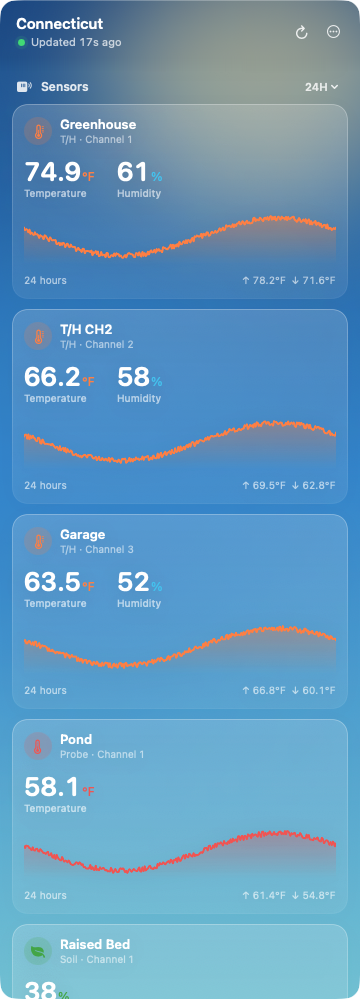
Every sensor paired to your gateway gets a card of its own: temperature and humidity sensors, soil moisture, temperature probes, leaf wetness, PM2.5 air quality, CO₂, lightning, distance (LDS01), leak sensors, and the WN38 black‑globe thermometer.
Each card shows:
- the sensor's name and type, with its icon in the type's colour;
- its readings, large, with the unit in the reading's colour;
- a graph of its main reading, with the high and low; hover to read a moment.
Range menu — the menu at the top of the Sensors section (24H to 1Y) sets how far back every sensor graph goes.
Names — each card shows the name your gateway or Ecowitt account reports for the sensor (set in the Ecowitt app), or its type and channel, such as "T/H · Channel 1", if it has none.
Battery and signal — a sensor's battery icon and signal bars appear in its card when the gateway reports them.
07Station windows#
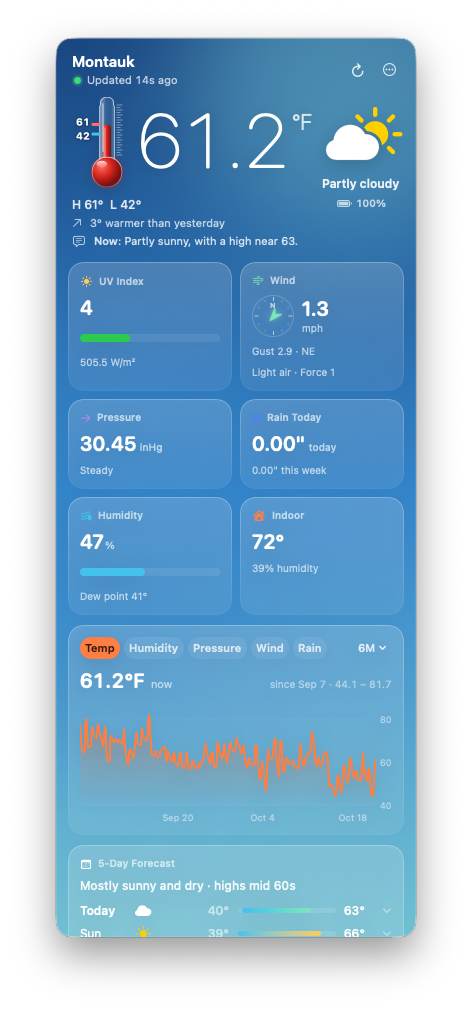
A station window is the dashboard in a window of its own: resizable, with no title bar, and placeable anywhere.
Open one:
- drag the menu bar panel by any empty area (not a card) and let go; or
- choose Open in Window from the ••• menu or the menu bar icon's right‑click menu; or
- choose Open Station in New Window and pick a station.
Move it by dragging its header. Resize it from any edge; the window remembers its size.
Right‑click the window for its own menu:
- Mini Mode — see Mini mode.
- Window Position — Normal window, Always on top (over every other window), or On the desktop (behind every window, above the desktop icons, on every Space — like a clock on the wall).
- Open Station in New Window — another station beside this one.
- Close Window.
Each station's window keeps its own size, place, position setting and mini mode. A window keeps showing its station even when you switch the panel to another.
08Mini mode#
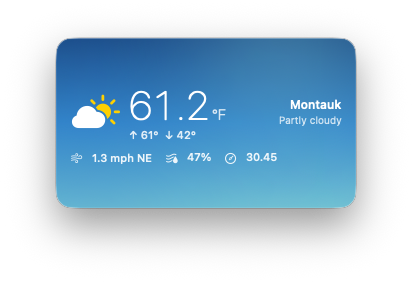
Mini mode shrinks a station window to a small summary: the temperature, today's high and low, the sky, wind, humidity and pressure (or rain, when it's raining).
- Turn it on from the window's right‑click menu, or from Settings › General.
- Drag it anywhere; it moves from any point.
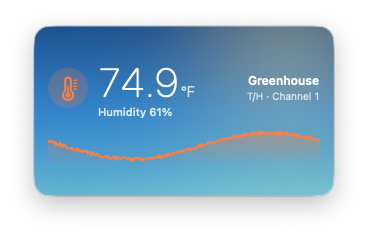
- Show (right‑click) — show the weather station, or any one of its sensors instead.
- Show Graph (right‑click, with a sensor shown) — a small 24‑hour graph along the bottom.
- Standard Window takes it back to the full dashboard.
09Sensor windows#
Any sensor can have a small window of its own, so you can keep the greenhouse, the pond and the attic on the desktop at once.
Open one:
- drag a sensor card out of the panel or a station window, past its edge, and let go on the desktop — the window appears where you release; or
- right‑click a sensor card and choose Open in Mini Window.
Each sensor window shows the sensor's reading, its second reading, and its 24‑hour graph. Right‑click it for Show Graph, Window Position and Close Window. It remembers where you left it, and comes back after a restart.
Sensor windows share the station's readings with the panel, so they add no extra requests to your Ecowitt account.
10Alerts#
The app can notify you about the weather at every station on your account, around the clock, as long as it's running. Turn them on in Settings › Alerts.
Weather alerts:
- Freezing (32°F / 0°C) and Frost tonight
- Pressure falling fast
- It just started raining, Rain has stopped
- Lightning detected
- Wind gusts above a limit you set
- Rain today above a limit you set
- Temperature above or below limits you set
Sensors and devices:
- Low sensor battery
- Sensor stops reporting
- Station offline
- Firmware update available
Daily summary — one notification each morning at the time you choose, with the day's outlook.
Quiet hours — nothing between the times you set, except the leak alarm.
Alerts arrive as macOS notifications. Allow them for Dashboard for Ecowitt in System Settings › Notifications if you don't see them.
11Water‑leak alarm#
If you have an Ecowitt leak sensor (WH55), turn on Water leak alarm in Settings › Alerts.
When a sensor detects water:
- an emergency notification appears, naming the sensor;
- a loud alarm sounds for about 30 seconds, and repeats every 30 minutes until you click OK or the sensor is dry;
- the menu bar icon turns into a red warning, and a WATER DETECTED banner appears in the dashboard and mini windows.
12Forecast and radar#
5‑day forecast — for the station's location, with highs, lows, conditions and a summary line. Sunrise, sunset and the moon phase are underneath. Turn it off with Show weekly forecast in Settings › General.
Written forecast (US) — stations in the United States get the National Weather Service's written forecast: a line for right now under the temperature, and a paragraph for each day when you click it.
Weather radar (US) — the latest NOAA radar picture for the nearest radar site, refreshed every 10 minutes. Turn it off with Show weather radar. Radar is only offered for US locations on a Mac set to the US region.
The station's location comes from Ecowitt where your station reports one. Set or change it in the iPhone app under Settings › Devices and Location.
13Settings#
Open Settings from the ••• menu, the menu bar icon's right‑click menu, or with ⌘, while a Weathervane window is in front.
Station
- Connect using — Ecowitt Cloud or Local network, with the keys or address for each.
- Your stations — tick the stations to show in the picker; drag to reorder them.
Units
Temperature, rainfall, wind speed, pressure, solar radiation, lightning distance and distance (feet and inches or metric), plus 24‑hour time. Stations with two rain gauges can choose which is the main one.
Alerts
Everything in Alerts and the Water‑leak alarm, plus the daily summary time, quiet hours and the notification sound.
General
- Menu bar shows — icon and temperature, icon, or temperature.
- Open at login.
- Automatically Check For Updates, with the time of the last check and Check Now.
- Show weekly forecast and Show weather radar.
- Desktop window — Mini mode, Position and Open Window for the station the panel is showing.
14Several stations#
If your account has more than one station:
- Switch with the picker in the panel's header.
- Watch them all by opening each in its own window: Open Station in New Window. Each window keeps its station, size and place.
- Alerts are checked for every station each minute, not just the one on screen.
- Readings for a station shown in both the panel and a window are fetched once and shared.
15Updates#
The app checks the Mac App Store for a newer version once a day (switch this off in Settings › General). When one is found, a dialog offers Install Update, which opens the App Store, Remind Me Later, or Skip This Version.
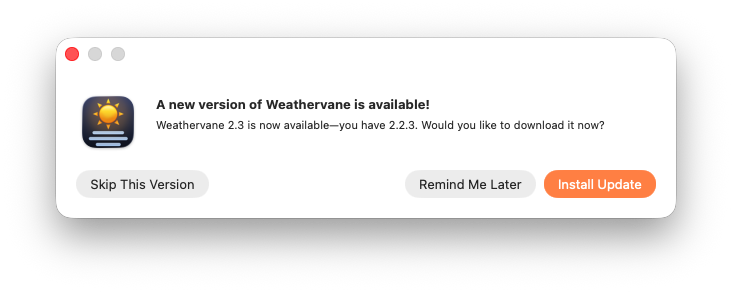
You can also check from Settings › General › Check Now, or see the current version in About Weathervane.
16Troubleshooting#
"Waiting for first reading" for a long time — check Settings › Station. For Ecowitt Cloud, make sure both keys are filled in and the station appears on your account at ecowitt.net. For a local gateway, make sure your Mac is on the same network and the gateway's address hasn't changed.
Readings are old; the dot is grey — the station hasn't reported. Check the gateway has power and Wi‑Fi, and that it shows as online in the Ecowitt app.
"ecowitt.net is slow to respond" — Ecowitt limits how often an account may ask for data. The app slows down and keeps trying by itself; readings resume within a few minutes. Running the app on several Macs and phones with the same account at once can bring this on.
A sensor shows "No reading yet" — it's paired but hasn't sent anything yet, or is out of range. Check its battery and distance from the gateway.
Graphs have gaps — the app records history while it runs; a cloud station or a gateway on your account fills gaps in automatically the next time the app opens. A local gateway with no account only has what the app saw.
The window disappeared — it may be On the desktop, behind your other windows. Hide the other apps (⌘⌥H) or choose Open in Window again; it comes to the front.
Alerts don't arrive — allow notifications for the app in System Settings › Notifications, and check Quiet hours in Settings › Alerts.
Reset the app — quit it, then delete ~/Library/Containers/com.leechsoftware.weathervane and open it again. This removes your keys and history.
Still stuck? Choose Email Us… from the ••• menu. The message includes diagnostic details about your setup (never your keys) to help us help you.
17Privacy#
- Readings go only between your Mac and Ecowitt (or your gateway), the National Weather Service, and the forecast service for your station's location.
- Your Ecowitt keys are stored in your Mac's keychain and never sent anywhere but ecowitt.net.
- The app has no analytics and no advertising.
Full policy: leechsoftware.com/dashboard-for-ecowitt-mac/privacy-policy
18Getting help#
- Email: choose Email Us… in the app (••• menu), or use the contact form.
- iPhone, iPad and Apple Watch: leechsoftware.com/dashboard-for-ecowitt
- Buy the developer a coffee: buymeacoffee.com/leechsoftware
Dashboard for Ecowitt is made by Leech Software. Ecowitt is a trademark of its owner; this app is not affiliated with Ecowitt.